

Quick Start Video
2. Create a Character
Characters are the people who appear in your film. Each character can be reused across multiple scenes and shots, ensuring visual consistency throughout your production.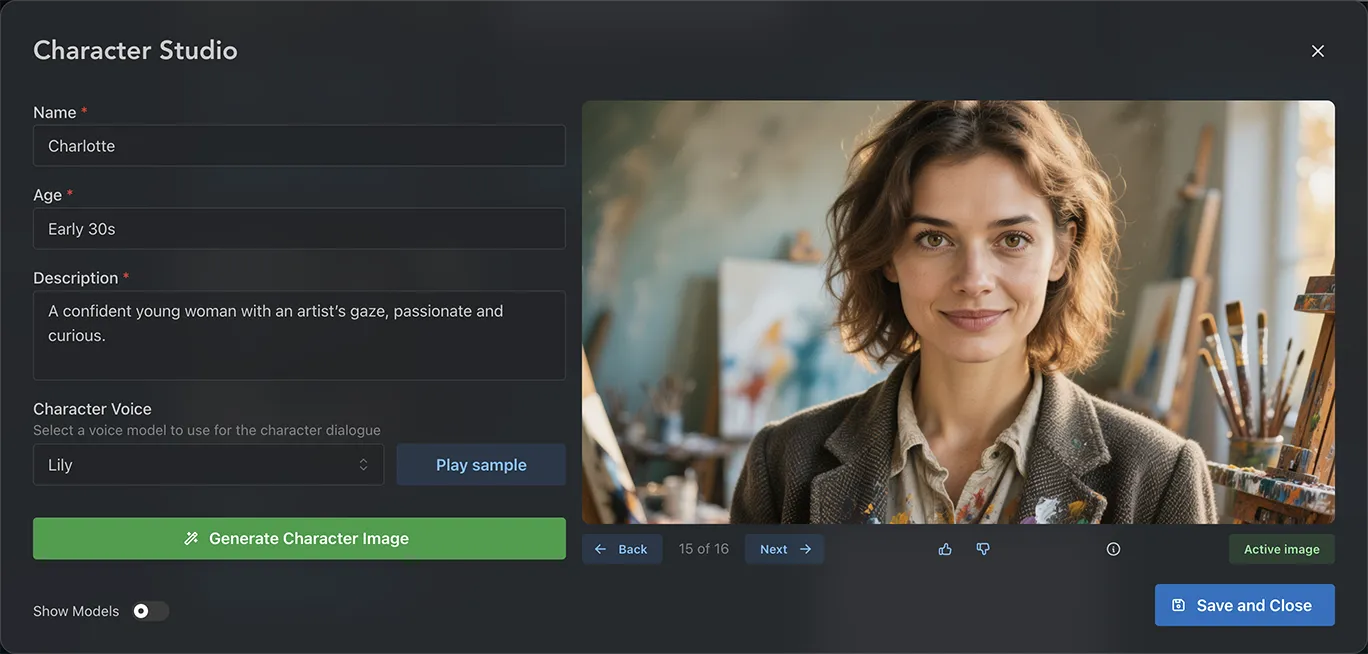
Step 1: Enter Character Details
- On the Characters page, click Create New Character
- Enter the character’s Name
- Enter the character’s Age
- Write a detailed Description — include physical appearance (hair, height, build, distinctive features), clothing style, personality traits, and any other visual characteristics that will help the AI generate an accurate representation
- Select a voice — You can select the voice your character will have here. Click Play Sample to hear a sample. This voice will be used when generating dialogue
Building a character from a photo? Switch the New / Edit / Reference Image control to Reference Image and upload it there — that is the only place a photo reaches the model. Describing an upload in the Description field does nothing, because on the New method there is no image to reference. Note that the Reference Image method uses your photo as a likeness reference and generates a new studio portrait from it, rather than reproducing the photo itself — see Reference-to-Image.
Step 2: Choose Draft or Final quality
Under the generate button you’ll find a Draft / Final quality switch:- Draft — fast and inexpensive, ideal while you’re iterating on the description
- Final — the best image quality on offer, for when you’re happy with the direction
Step 3: Generate Character Image
- Click Generate Character Image — the details you entered will guide the AI image generation
- Each character is generated as a reference sheet — three consistent views of your character (a front portrait, a side profile, and a full-body shot) in a single image
- Review the generated image and refine your description if needed
- Generate again until you’re satisfied with the result
- Click Save and Close to add the character to your project
Automat uses your character’s reference sheet when generating scenes and shots. The extra angles help keep your character looking consistent across different shot types and camera angles — including profile and wide shots, where a single front-on portrait tends to drift.
Editing an existing image
Switch the New / Edit / Reference Image control to Edit to change the active image rather than start over: describe the change (“give her a red scarf”, “rain-soaked”, “older”) and click Edit Character Image. The active image is the source, so set the generation you want to build on as active first.Managing Generations
Once you’ve generated character images, you can manage them with the following features:- Navigate through generations — Use the back and next buttons under the image to browse through all generated versions
- Provide feedback — Click the thumbs up and thumbs down buttons to give feedback on generated images
- Active image — The active image will be used when creating shots and scenes. New generations are automatically set as active
- Set active image — To set a different image as active, navigate to it using the back/next buttons and click Set Active underneath the image
- Hide a generation — Click the eye button to tuck away a generation you no longer want to see, without losing it. To bring it back, click the show-hidden (eye) button next to the navigation counter, navigate to the hidden generation, and click Unhide
- Delete a generation — Click the trash button to remove a generation permanently. If you might want it back later, hide it instead
Fullscreen view
Click Switch to fullscreen view at the bottom of the dialog to work with the image filling the whole screen. Everything above works the same way; the layout is different:- Controls panel — Name, the New / Edit / Reference control, the description, Draft / Final and the generate button float in a panel at the left — drag it by the grip along its top edge to uncover the picture, or drag it to the left or right side of the window to dock it there as a rail (a guide appears when it is close enough; the picture switches to Fit and shrinks to make room, and dragging it away floats it again — double-click the grip to put it back). More — age & voice holds the Age and Voice fields. On a phone the panel is a sheet that slides up from the bottom — tap the sliders icon in the top bar to open it
- Takes strip — every generation runs along the bottom as a strip of thumbnails. Click one, or use the ← and → keys, to put it on screen; the take with the green tick is the active image
- Action bar — thumbs up/down, favourite, info, hide, delete and Set Active sit in a bar just above the strip. The heart and eye buttons at the left of the strip filter to favourites or reveal hidden takes
- Fill or Fit — the top-right switch crops the image to fill the screen or fits the whole image inside it. Click the image itself to open it full size
- Closing — the × in the top right (or Esc) saves anything unsaved and returns you to your characters. Switch to classic view at the bottom of the panel goes back to the dialog
Tip: The AI model in use is shown just below the generate button — click Click here to change to experiment with different models for varied visual styles and quality levels.
Create a Project
Previous: project setup
Location Studio
Next: create your location