

Quick Start Video
3. Create a Location
Locations define where your scenes take place. Each location can be reused across multiple scenes, saving time and maintaining visual consistency throughout your film. Prefer the picture big? Switch to fullscreen view (bottom left of the dialog, next to Watch Tutorial) opens the same location with the image filling the screen and the controls floating on top — see Fullscreen view below. Whatever you have typed comes with you.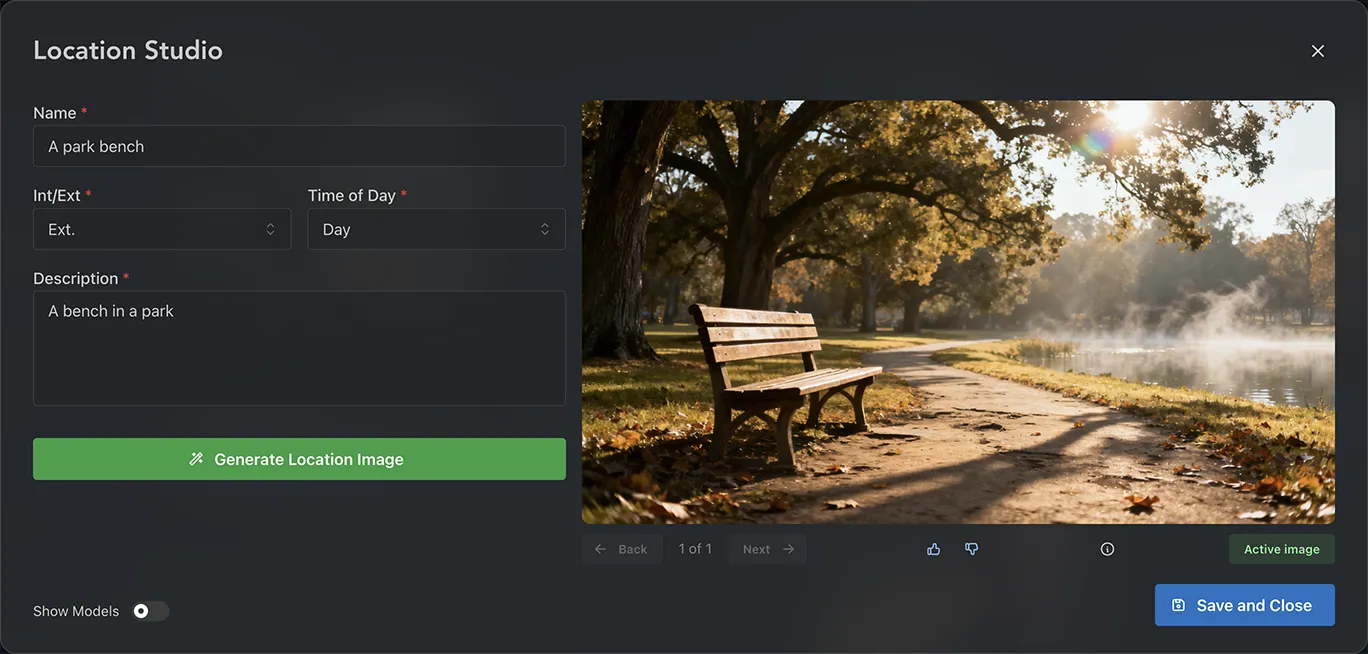
Step 1: Enter Location Details
- Click Create New Location
- Enter a descriptive Name (e.g., “Downtown Coffee Shop” or “Mountain Cabin”)
- Select Int. (Interior) or Ext. (Exterior) to indicate the location type
- Select Day or Night for the lighting condition
- Write a detailed physical Description of the location — include architectural details, atmosphere, mood, and key visual elements
Step 2: Choose Draft or Final quality
Under the generate button you’ll find a Draft / Final quality switch:- Draft — fast and inexpensive, ideal while you’re iterating on the description
- Final — the best image quality on offer, for when you’re happy with the direction
Step 3: Generate Location Image
- Click Generate Location Image — your description will guide the AI image generation
- Review the generated image and refine your description if needed
- Generate again until you’re satisfied with the result
- Click Save and Close to add the location to your project
Managing Generations
Once you’ve generated location images, you can manage them with the following features:- Navigate through generations — Use the back and next buttons under the image to browse through all generated versions
- Provide feedback — Click the thumbs up and thumbs down buttons to give feedback on generated images
- Active image — The active image will be used when creating shots and scenes. New generations are automatically set as active
- Set active image — To set a different image as active, navigate to it using the back/next buttons and click Set Active underneath the image
- Hide a generation — Click the eye button to tuck away a generation you no longer want to see, without losing it. To bring it back, click the show-hidden (eye) button next to the navigation counter, navigate to the hidden generation, and click Unhide
- Delete a generation — Click the trash button to remove a generation permanently. If you might want it back later, hide it instead
Fullscreen view
Click Switch to fullscreen view at the bottom of the dialog to work with the image filling the whole screen. Everything above works the same way; the layout is different:- Controls panel — Name, the New / Edit / Reference control, the description, Draft / Final and the generate button float in a panel at the left — drag it by the grip along its top edge to uncover the picture, or drag it to the left or right side of the window to dock it there as a rail (a guide appears when it is close enough; the picture switches to Fit and shrinks to make room, and dragging it away floats it again — double-click the grip to put it back); More — int/ext & time of day holds those two fields. On a phone the panel is a sheet that slides up from the bottom — tap the sliders icon in the top bar to open it
- Takes strip — every generation runs along the bottom as a strip of thumbnails. Click one, or use the ← and → keys, to put it on screen; the take with the green tick is the active image
- Action bar — thumbs up/down, favourite, info, hide, delete and Set Active sit in a bar just above the strip; the bookmark button there saves the take as a view (see Saving Views below). The heart and eye buttons at the left of the strip filter to favourites or reveal hidden takes
- Fill or Fit — the top-right switch crops the image to fill the screen or fits the whole image inside it. Click the image itself to open it full size
- Closing — the × in the top right (or Esc) saves anything unsaved and returns you to your locations. Switch to classic view at the bottom of the panel goes back to the dialog
Tip: The AI model in use is shown just below the generate button — click Click here to change to experiment with different models for varied visual styles and quality levels.
Saving Views
A single location can hold several views — for example a wide establishing angle, a tight corner, or the same room at a different time of day. Saving a generation as a view lets you reuse that exact image as the reference when generating a shot’s first frame, without changing the location’s main active image.- Save a view — Navigate to the generation you want to keep and click the bookmark (+) button beneath the image. The view is saved with an automatic name like “View 2”
- Rename a view — Click the view’s name badge and enter a new name (e.g., “Wide establishing”, “Behind the bar”)
- Remove a view — Click the bookmark-off button to unsave it; the underlying generation is kept, it just stops appearing in the shot view picker
Views are per-location. The location’s active image acts as the default view for any shot that doesn’t pick a specific one. See Generate First Frame for how to select a view when creating a shot.
⚠️ Important: You must create at least one location before you can create a scene.
Character Studio
Previous: create characters
Prop Studio
Next: create props for your scenes